
Community Management with Purple+
Let Purple+ handle your social media community. The same AI agent that creates and publishes your content can now read incoming messages, comments and reviews across your connected accounts, draft on-brand replies, and — when you allow it — send them automatically. Negative sentiment is always held back for you.
Community management is reactive work: someone comments, you reply; a review lands, you respond; a DM comes in, it needs an answer. Purple+ does the reading and drafting for you, in your brand voice, and routes anything sensitive to a human. You stay in control of what goes out.
This guide walks you through turning it on and setting it up. It takes about 5 minutes.
What you'll get
Once it's set up, Purple+ will, across every connected social account:
-
Pull in messages, comments and reviews as they arrive.
-
Detect sentiment and draft a reply in your brand voice.
-
Hold every draft for your approval — or auto-send the buckets you choose.
-
Always escalate negative sentiment to you, never auto-answering it.
-
Send a daily recap email so you know what needs attention without living in the inbox.
One agent, one inbox, every platform.
Before you start
You'll need:
-
A Purple+ account with at least one organisation.
-
At least one social account connected under Connectors (Facebook, Instagram, LinkedIn, YouTube, Google Business Profile, and more).
-
The Community Management add-on enabled (see Step 1). It's $10/month, cancel anytime, and included free on the Scale plan.
Step 1 — Turn on Community Management
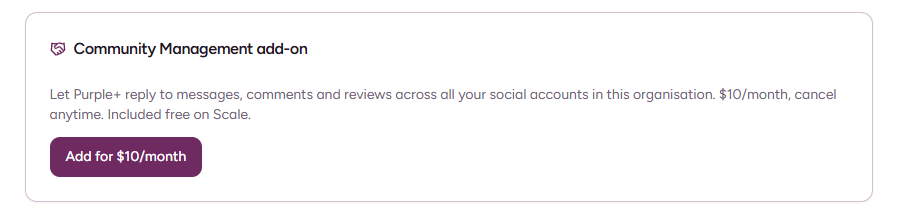
If you're on Free or Pro, open the Community Management add-on card and click Add for $10/month. You can cancel anytime.
If you're on Scale, it's already included — there's nothing to add.
Step 2 — Open Community Management
In the left sidebar, click Community Management. The badge next to it shows how many items are waiting for you.
You'll land on the main page, with three areas:
-
Community settings — auto-answer mode and keywords, per account.
-
Notifications — your daily recap email.
-
The inbox — Messages, Comments and Reviews, with filters.
Step 3 — Choose a mode for each account
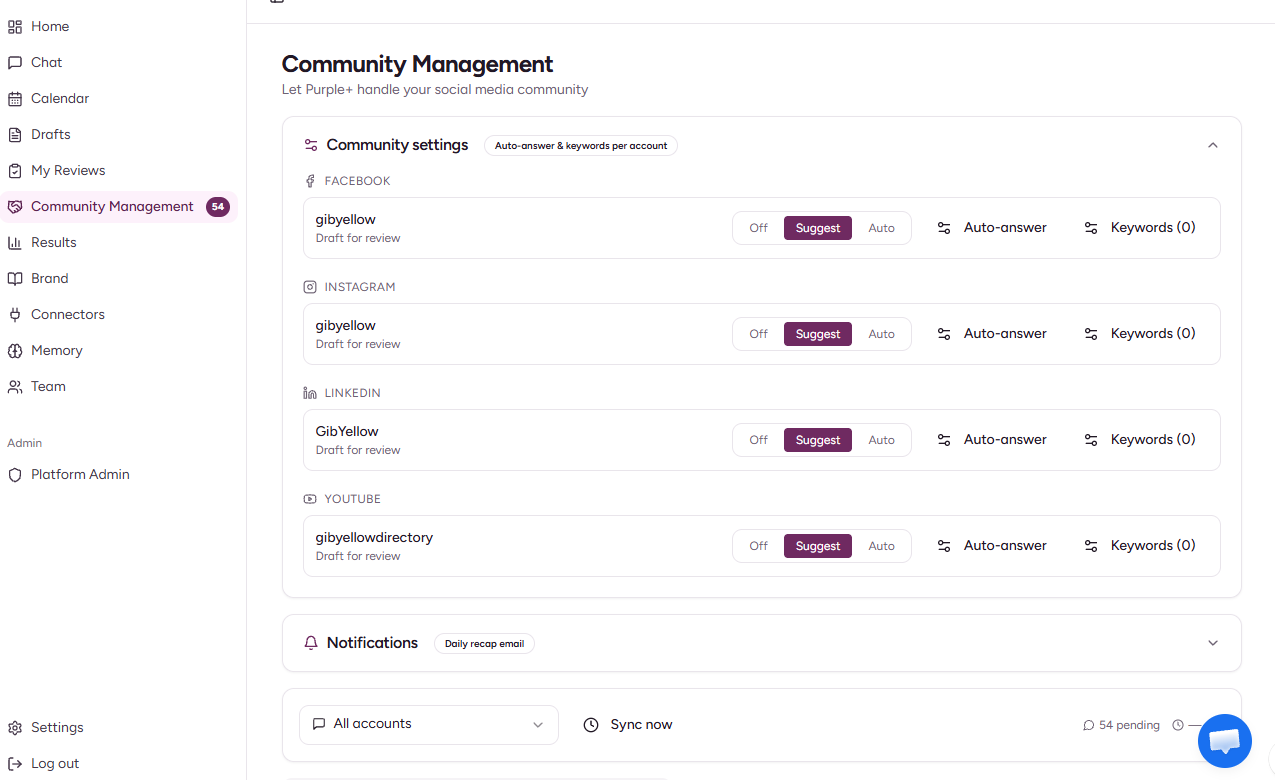
Under Community settings, every connected account is listed by platform, each with its own mode. Pick how hands-on you want Purple+ to be per account — your Facebook page and your LinkedIn page can behave differently.
|
Mode |
What Purple+ does |
|---|---|
|
Off |
Ingests items so you can see them, but drafts nothing. |
|
Suggest (Draft for review) |
Drafts a reply for every item and holds it for your approval. Nothing sends until you say so. |
|
Auto (Auto-answer) |
Sends automatically for the sentiment buckets you choose — everything else still waits for approval. |
Suggest is the recommended starting point. Run it for a week, see how the drafts read, then move accounts to Auto once you trust the voice.
Step 4 — Set the auto-answer matrix
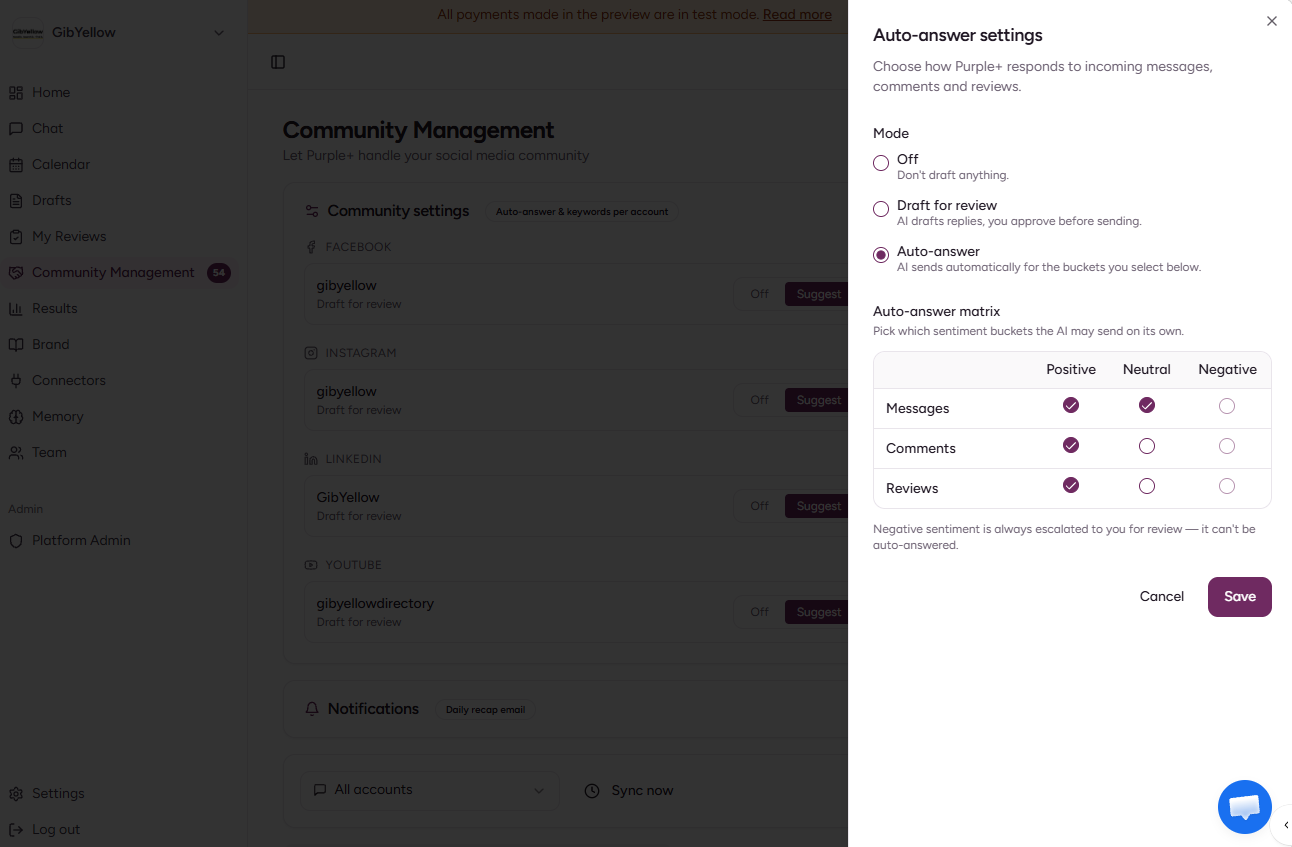
When an account is set to Auto, click Auto-answer to choose exactly what it may send on its own. Pick the sentiment buckets per item, for example:
|
Positive |
Neutral |
Negative |
|
|---|---|---|---|
|
Messages |
✓ |
✓ |
— |
|
Comments |
✓ |
— |
— |
|
Reviews |
✓ |
— |
— |
A safe default is to auto-answer positive items (thank-yous, compliments) and leave neutral ones for review. Negative sentiment is always escalated to you — it can never be auto-answered, on any account, in any mode.
Step 5 — Add keywords (optional)
Each account has a Keywords setting. Add words or phrases that should always pull an item out of auto-send and escalate it to you — things like refund, cancel, legal, or anything specific to your business you never want answered automatically.
Keywords work alongside sentiment: even a "positive"-looking message gets held for review if it trips one of your keywords.
Step 6 — Set up the daily recap email
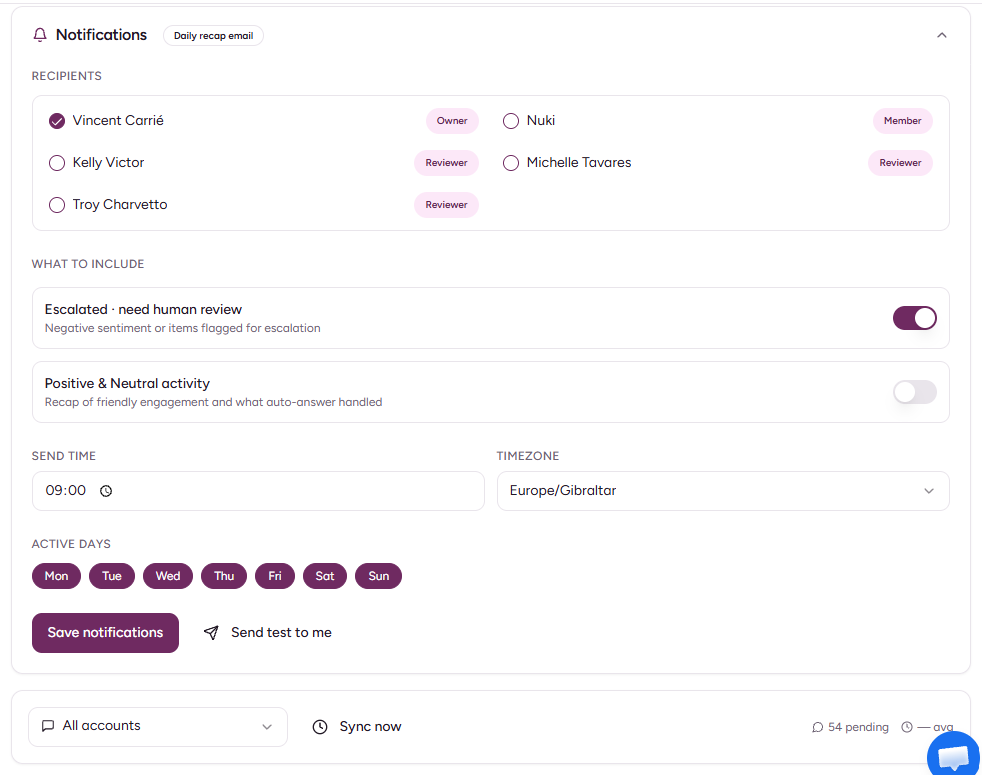
Open Notifications to get a once-a-day summary instead of constant pings.
-
Recipients — tick who should receive it. Owners, Reviewers and Members in your organisation are all listed.
-
What to include:
-
Escalated · need human review — negative sentiment and anything flagged for escalation. Keep this on.
-
Positive & Neutral activity — a recap of friendly engagement and what auto-answer handled. Optional.
-
-
Send time and Timezone — e.g. 09:00, Europe/London.
-
Active days — choose which days the recap sends.
-
Click Save notifications. Use Send test to me to preview it.
Using the inbox
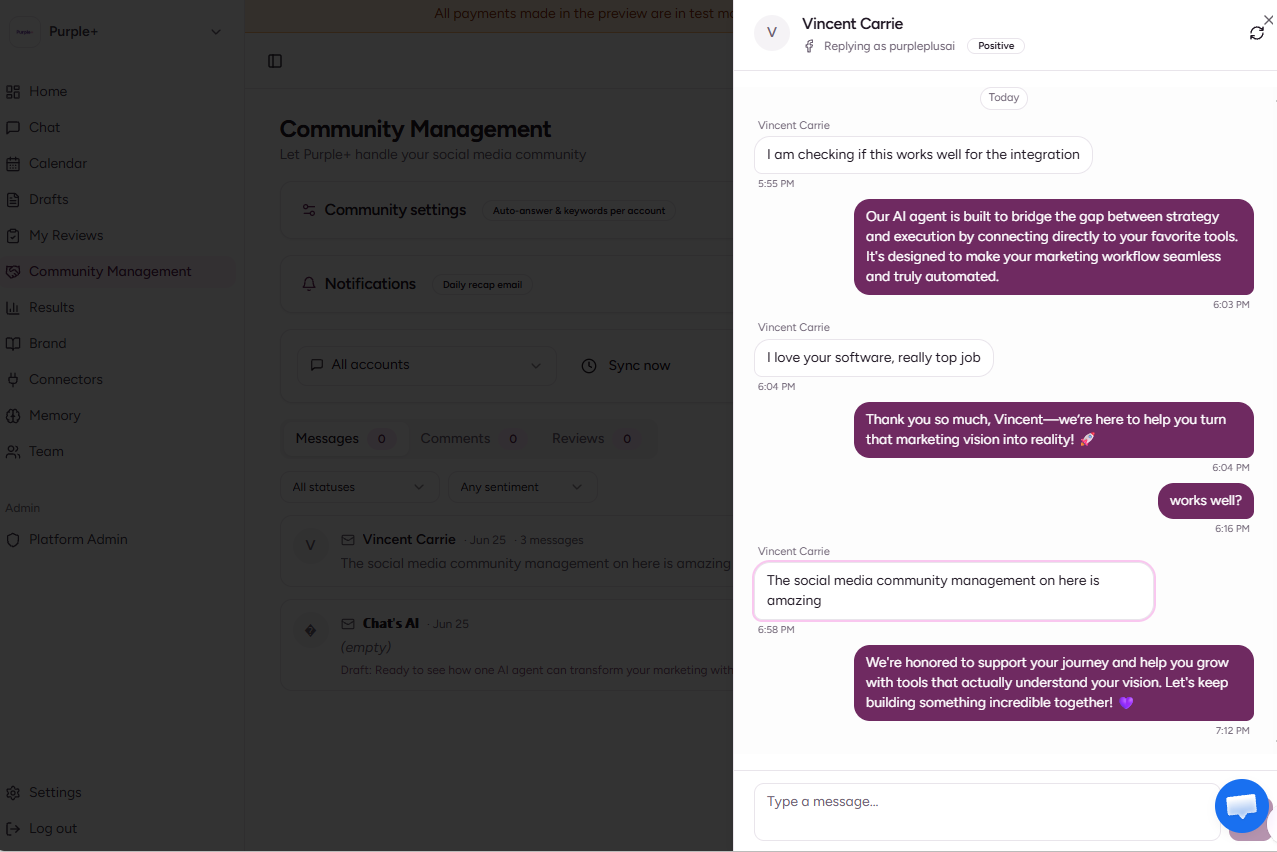
The inbox is split into three tabs — Messages, Comments and Reviews — each showing a live count. Use the All statuses and Any sentiment filters to focus, and the All accounts dropdown to narrow to one account.
Each item shows the author, the original text, a sentiment chip (Positive / Neutral / Negative), its status, and the draft reply Purple+ has prepared. Statuses you'll see:
-
pending_approval — a draft is ready and waiting for you.
-
escalated — negative or flagged; needs a human. These are pinned and highlighted.
Open any item to see the full thread, edit the draft, and reply. The composer shows which account you're replying as. To send, approve the draft (or edit it first). Hit Sync now any time to pull the latest from your accounts; the footer shows how many items are pending and your average response time.
How sentiment and escalation work
Purple+ classifies every incoming item before drafting:
-
Positive / Neutral — eligible for auto-answer if you've enabled that bucket; otherwise drafted for review.
-
Negative — always escalated, never auto-sent, regardless of mode.
-
Keyword match — escalated, even if the sentiment looks fine.
-
Spam / abuse — Purple+ won't draft an engagement reply; you can hide or ignore it.
The principle is simple: Purple+ speeds up the easy, friendly replies and puts a human in front of anything that could go wrong.
Managing Community Management
-
Change a mode: switch any account between Off / Suggest / Auto at any time under Community settings — it takes effect on the next item.
-
Pause an account: set it to Off to stop drafting without disconnecting it.
-
Cancel the add-on: Free and Pro can remove it anytime; on Scale it stays included.
-
Per client (agencies): each organisation has its own Community Management settings and inbox, fully isolated. Configure each client's accounts independently.
Troubleshooting
The inbox is empty but my social accounts have activity. Click Sync now to pull the latest. New accounts may take a few minutes to backfill the first time.
An account shows no drafts. Check its mode isn't set to Off, and that the account is still connected under Connectors.
An account says it needs reconnecting. Re-authorise it in Connectors — Purple+ can't read or reply on an account with expired access.
A reply didn't send. Open the item and retry. If you see a session error, it usually clears on a second attempt.
I'm not getting the recap email. Check you're ticked as a recipient under Notifications, confirm the send time and active days, and use Send test to me to verify delivery.