Google Ads
Create Google Ads campaigns and monitor performance with Purple+.
Purple+ helps you turn a campaign brief into ad copy and creative, review the work, and send it to Google Ads. Start by connecting your account under Connectors, then use chat to build your campaign.
Before you start
Have the following ready:
-
A Google Ads account with billing set up.
-
A Google login with permission to manage that ad account.
-
The website or landing page you want to promote.
-
Your campaign objective, target locations and budget.
-
Conversion tracking if you want to measure enquiries, purchases or other website actions.
Your advertising spend is billed through your Google Ads account.
Connect Google Ads
-
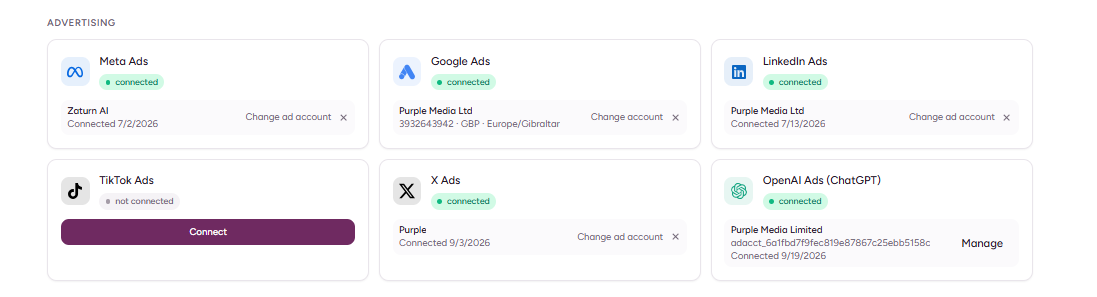
Open Connectors in the Purple+ sidebar.
-
Find Google Ads and click Connect.
-
Sign in with the Google account that has access to your advertising account.
-
Review and grant the requested permissions.
-
Complete the connection and return to Purple+.
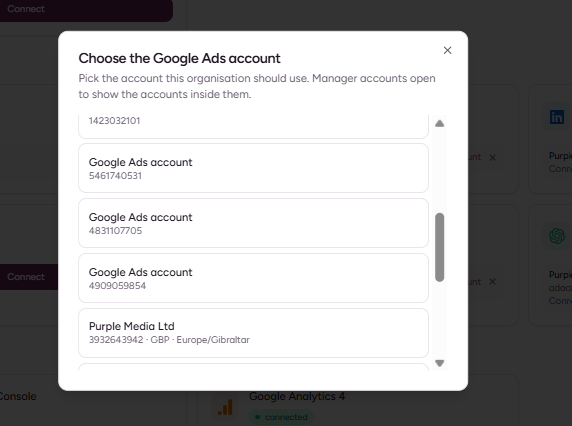
Before creating a campaign, confirm which advertising account you want to use. This is particularly important if your Google login has access to several businesses or client accounts.
Connecting Google Analytics or Search Console does not replace connecting Google Ads. Each connection gives Purple+ access to a different part of your marketing.
Choose your campaign type
|
Campaign type |
What it is for |
What you prepare |
|---|---|---|
|
Search |
Reaching people searching for your products or services. |
Headlines, descriptions, landing page and keyword direction. |
|
Display |
Promoting your business across the Google Display Network. |
Images, ad copy, landing page and audience brief. |
|
Performance Max |
Running a campaign across multiple Google channels. |
A coordinated set of copy and creative, a landing page and a clear conversion goal. |
Performance Max can serve across channels including Search, Display and YouTube. Google determines where eligible ads appear; it does not guarantee delivery on every channel.
Create a campaign in chat
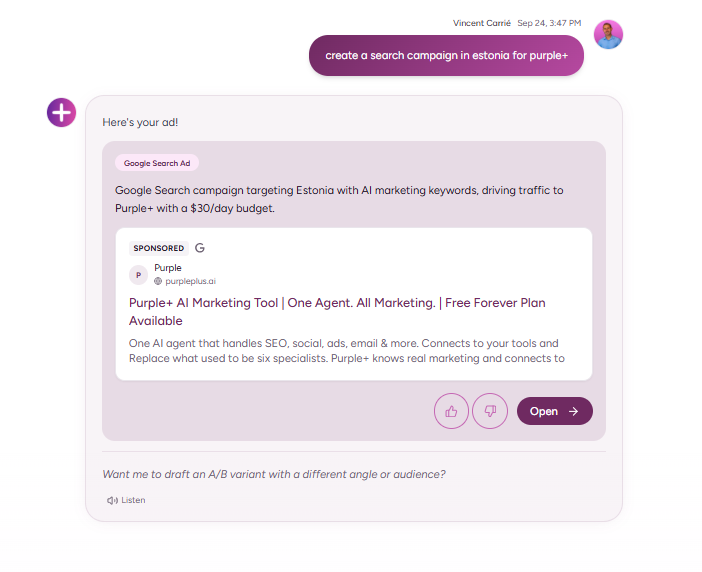
Give Purple+ enough context to make the first draft useful. Include what you sell, who you want to reach, where the ad should lead and how much you want to spend.
For example:
Draft a Google Search campaign for our kitchen renovation service. Target Manchester, promote our free consultation and use this landing page: [URL]. Our average daily budget is £25. Prepare the campaign for review before publishing.
You can then refine the draft:
Make the headlines more specific to kitchen renovations. Focus on local experience and clear quotations. Remove any claims that are not supported by our website.
For a visual campaign:
Prepare a Google Display campaign for our autumn collection. Use our Brand Kit, create square and landscape artwork, and keep the offer consistent with this landing page: [URL].
Keep prices, deadlines and offers accurate. Check that the landing page supports everything the ad promises.
Review your copy and creative
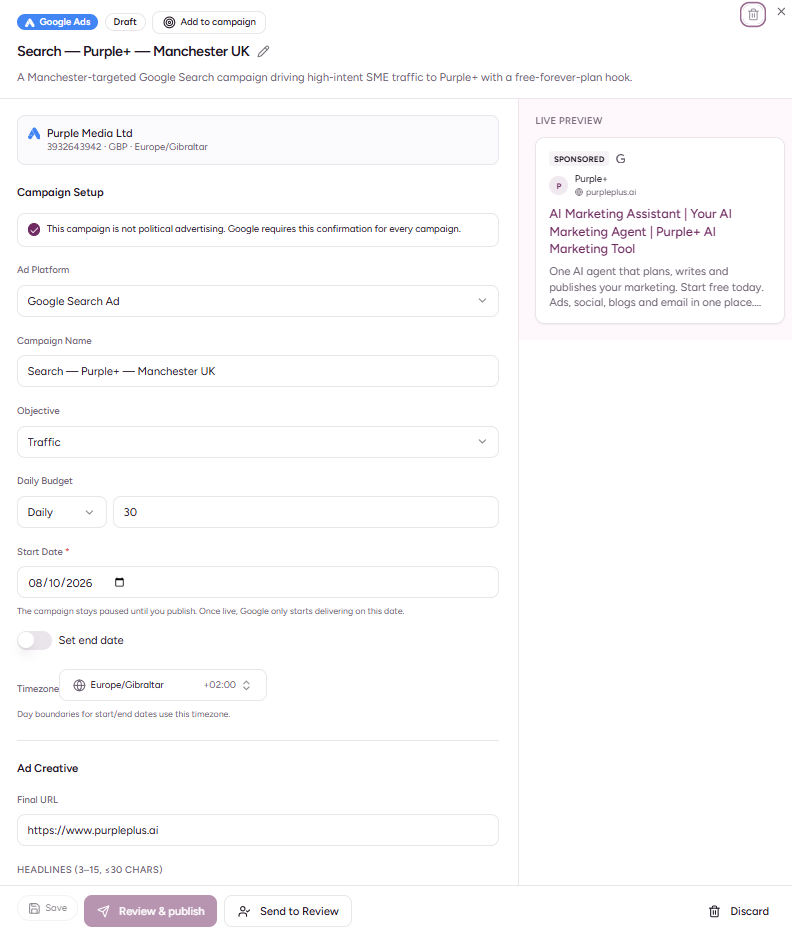
Search ads
Responsive Search ads use several headlines and descriptions. Google combines these into different versions of the ad.
You can supply up to 15 headlines and 4 descriptions, with limits of 30 characters per headline and 90 characters per description.
Read each line on its own and alongside the other variations. Avoid wording that only makes sense when two particular headlines appear together.
Display and Performance Max
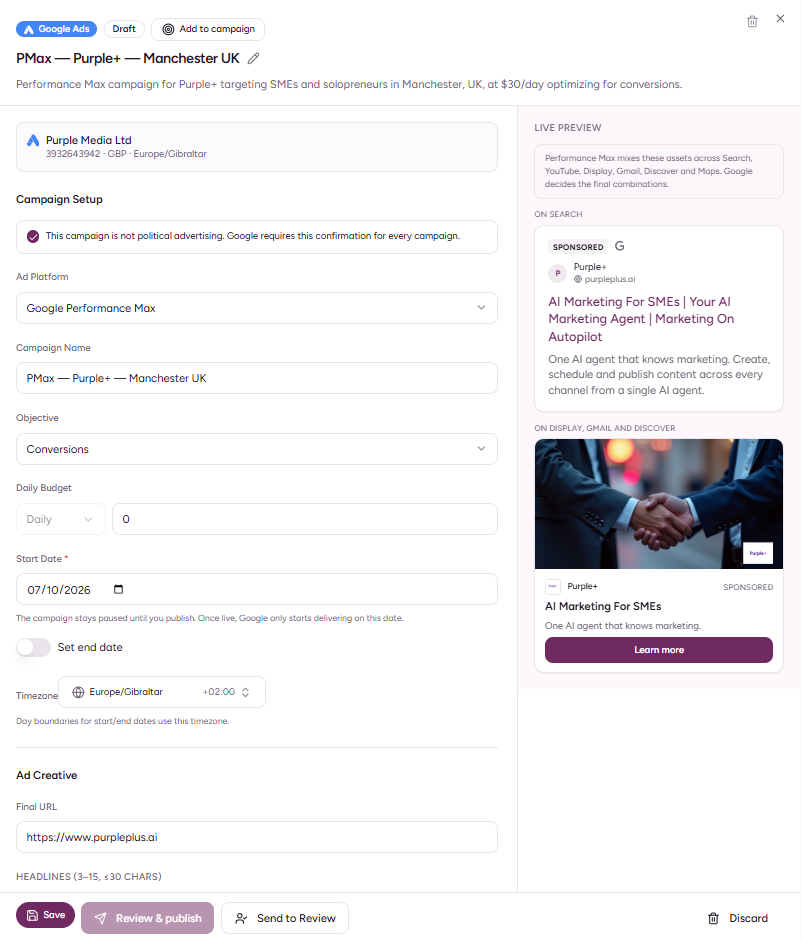
Check the images and copy together:
-
Can the main message be understood quickly?
-
Is the text readable at smaller sizes?
-
Are the logo, colours and offer correct?
-
Does the landing page match the creative?
-
Are the required assets present for the selected campaign type?
For Performance Max, treat the assets as a coordinated set. Give Google useful variations while keeping the product, offer and message consistent.
Check the campaign before publishing
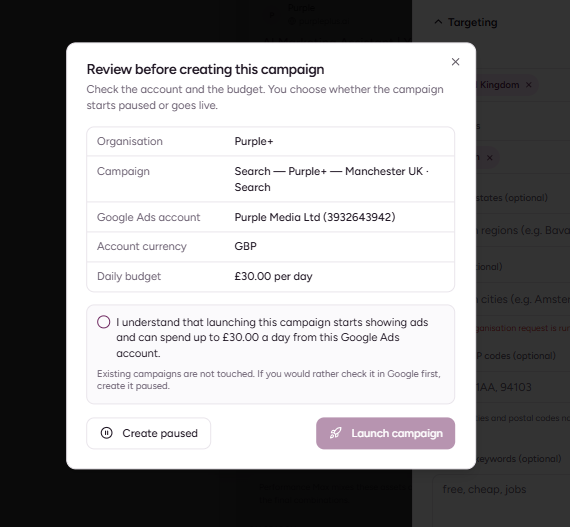
Review:
-
The Google Ads account.
-
Campaign type and objective.
-
Destination URL.
-
Location and language settings.
-
Keywords and match types where applicable.
-
Budget, currency and dates.
-
Bidding and conversion settings where applicable.
-
Ad copy and creative.
If anything is unclear, ask Purple+ to explain the proposed setup before approving publication.
An average daily budget is not a fixed daily spending cap. Google can spend more on some days and less on others, subject to its spending limits.
Publish and check delivery
Once you have reviewed the campaign, approve publication to the connected Google Ads account.
Submitting a campaign and receiving impressions are separate steps. Google may still need to review the ads, and delivery also depends on account eligibility, billing, campaign settings and available demand.
If a campaign has been created but is not delivering, check its status in Google Ads before submitting it again.
Review your results
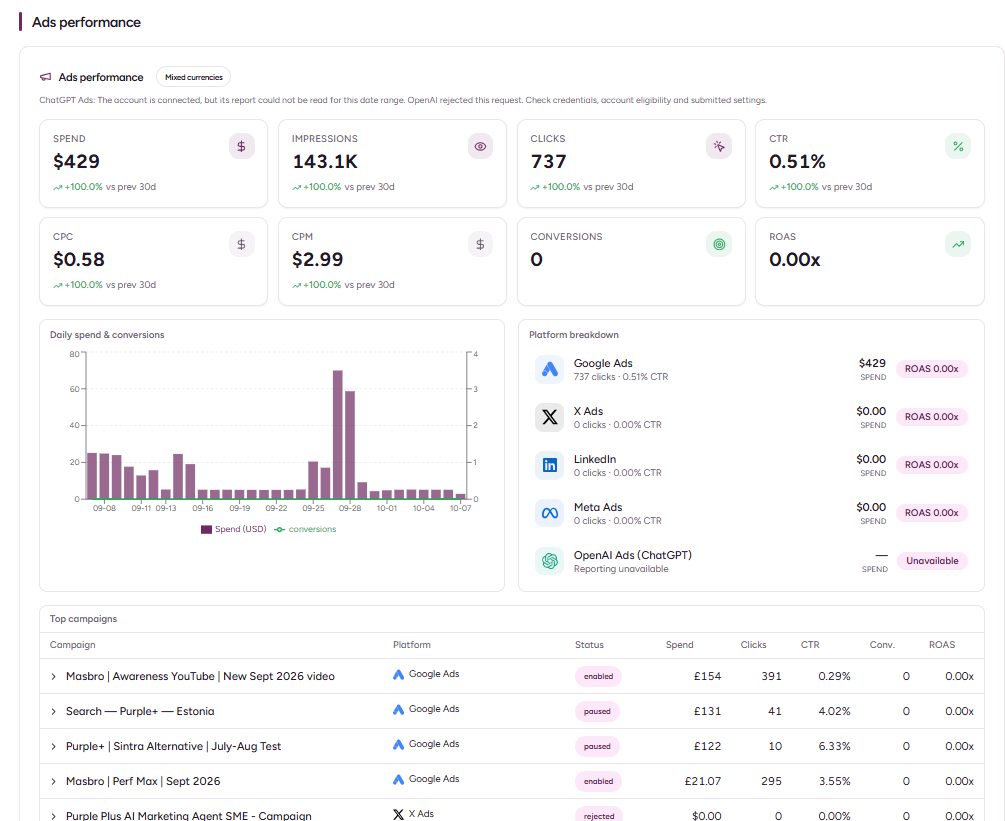
Open Results to review performance for campaigns launched through Purple+.
Available reporting includes:
-
Impressions.
-
Clicks.
-
Click-through rate.
-
Spend.
-
Conversions.
Check the reporting period and account before comparing campaigns. For lead generation or sales, look beyond clicks: conversion reporting helps you understand whether visits are producing the outcome you wanted.
Conversion figures depend on the tracking configured in Google Ads. Connecting the account does not automatically install tracking on your website.