
Generate ideas & the Board in Purple+
Generate ideas turns your brand and your calendar gaps into content ideas — then fans each one out into ready-to-review blogs, posts, and emails. Here's how.
The hardest part of marketing is often deciding what to make. Generate ideas takes that off your plate. Purple+ looks at your brand and what's missing from your calendar, and suggests angles worth writing about — each one ready to become real content in a couple of clicks.
Ideas live in the Planner. You generate them, arrange them on the Board, and use Generate to fan a single idea out into a full set of drafts across your channels.
Generating ideas
From the Ideas view in the Planner, hit Generate ideas. Purple+ builds each suggestion from:
-
Your brand — your voice, audience, and content pillars from your Brand Kit
-
Your connected channels — it won't suggest an ad idea for a channel you haven't connected
-
Your calendar gaps — "no blog planned this month" becomes a blog idea
-
What you've already published — so ideas don't repeat what just went out
Each idea arrives as a card with a title, a hook (the angle, and why anyone would care), a suggested format, its content pillar, and which channels it suits.
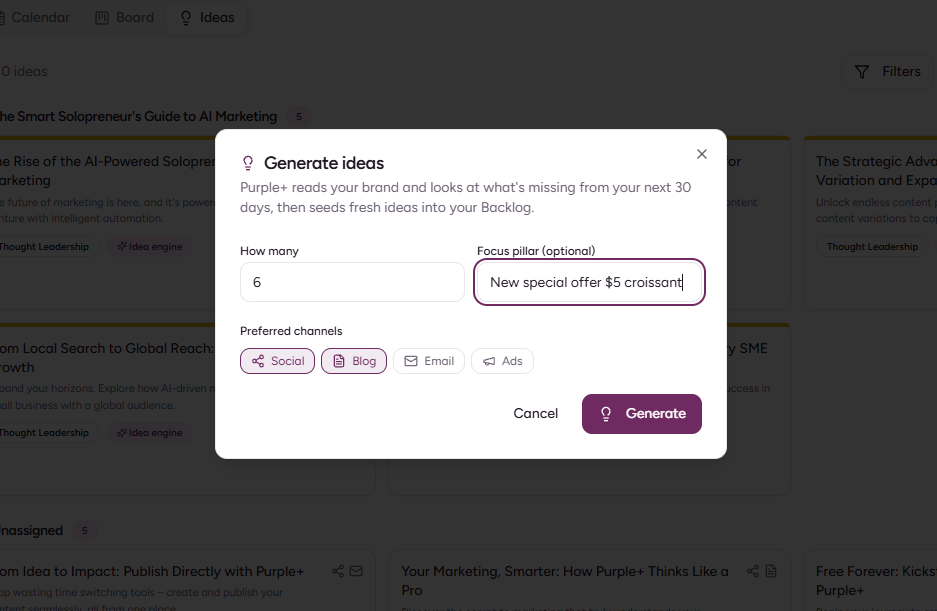
You can also add your own idea with New idea and work it alongside the generated ones.
The Board
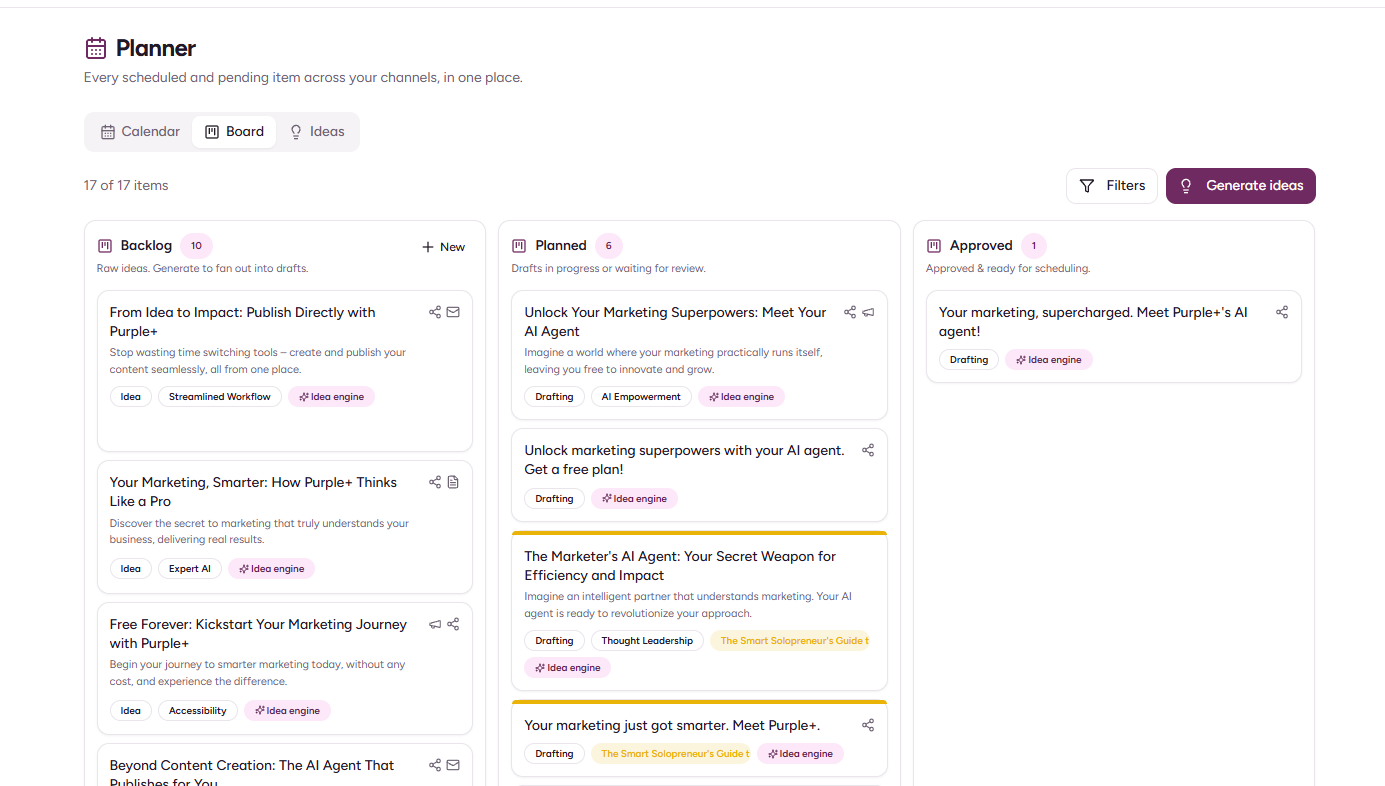
The Board is where ideas become plans. It has three columns:
|
Column |
What it means |
|---|---|
|
Backlog |
Fresh ideas, not yet committed to |
|
Planned |
Ideas you've decided to make |
|
Approved |
Ideas you've turned into content |
Drag a card between columns to move it along, or reorder within a column to set your priorities. Filter the board by campaign, pillar, or channel to focus on one thing at a time.
Turning an idea into content
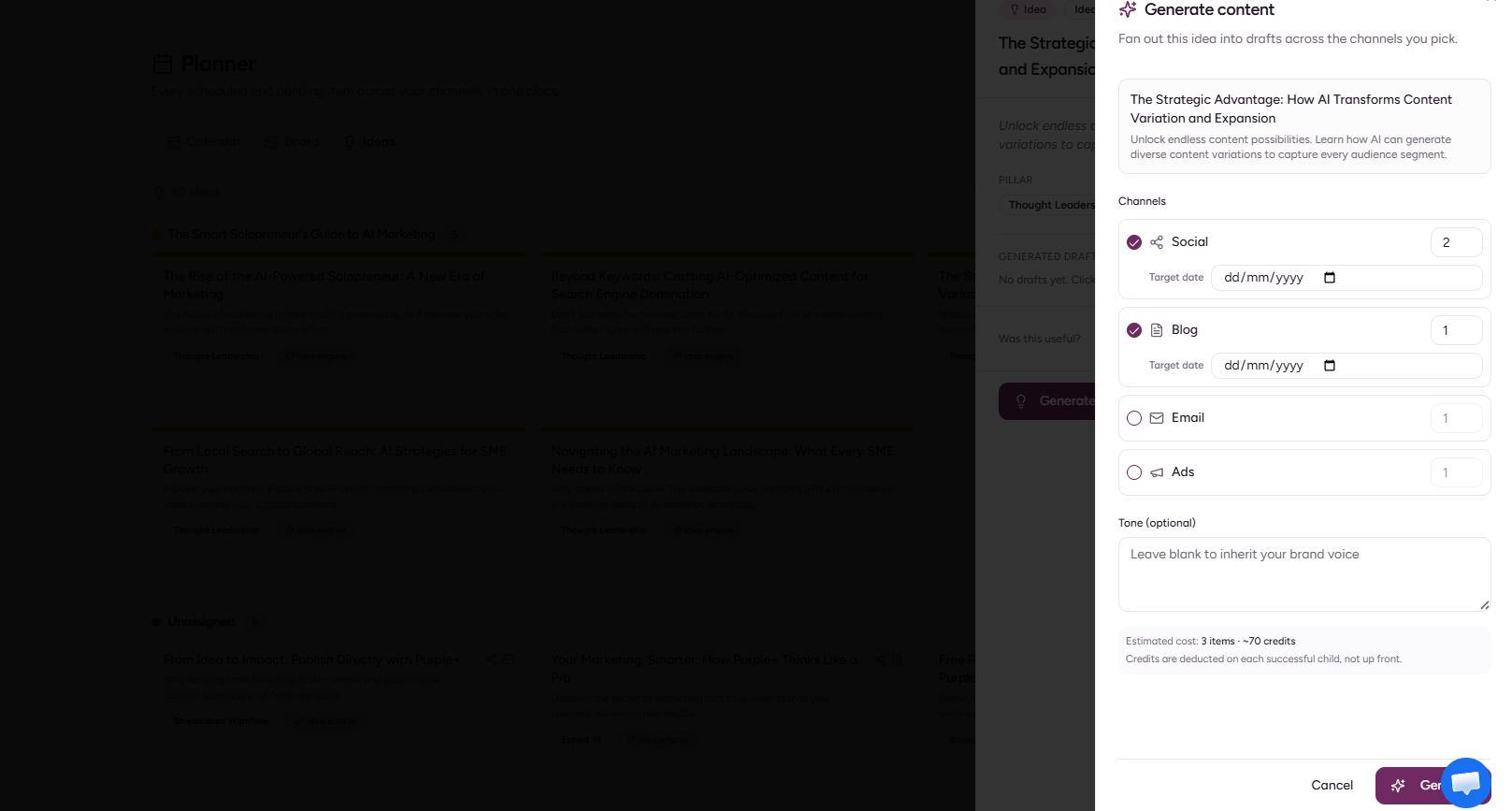
This is the part that saves the most time. Open an idea and hit Generate.
A short panel opens with the channels the idea suits already ticked — say, a social post and an ad. Adjust the selection, optionally set a target date for each, and confirm. Purple+ then creates a separate, on-brand draft for each channel you picked, all tagged to the same idea.
So one idea can become a blog, three social posts, and an email — every one built from your brand, every one ready to review.
-
Each draft is created on its own, so you see progress channel by channel.
-
If one channel doesn't come back, the others still land — you can retry just the one that failed.
-
The finished drafts appear in Drafts and in My Reviews, ready to approve, tweak, or schedule.
-
The idea itself moves to Approved and shows how many items it produced.
How it works
-
Open Content → Planner → Ideas.
-
Hit Generate ideas for a fresh set, or add your own with New idea.
-
Drag the ones you like from Backlog to Planned.
-
Open an idea and hit Generate to fan it out into channel drafts.
-
Find the drafts in My Reviews, then approve and schedule them.
What each idea contains
|
Field |
What it's for |
|---|---|
|
Title |
The idea, as a headline |
|
Hook |
The angle — why it's worth making |
|
Format |
The suggested shape, e.g. listicle or short video |
|
Pillar |
Which content theme it serves |
|
Suggested channels |
Where it fits — pre-ticked when you Generate |
Which plans include Generate ideas?
Generating ideas is included on Pro and Scale. Generating the ideas themselves is free — you're only charged when you turn an idea into real content, at the same per-channel rates as anything else you create. See Purple+ Credits Explained for how credits work. On the Free plan the board is view-only, with a prompt to upgrade.