Campaigns
Campaigns group your content around a shared objective and timeline — a launch, a season, an offer — and show it as one band across your Planner calendar. Here's how.
A campaign is a container. Instead of a launch living as scattered posts, a blog, and an email you have to track in your head, you group them under one objective with a start and end date. Everything tagged to that campaign then shows together — on the board, and as a colored band across the calendar.
Campaigns don't change what your content is or where it publishes. They're a lens: a way to see everything working toward the same goal, and how far along it is.
Creating a campaign
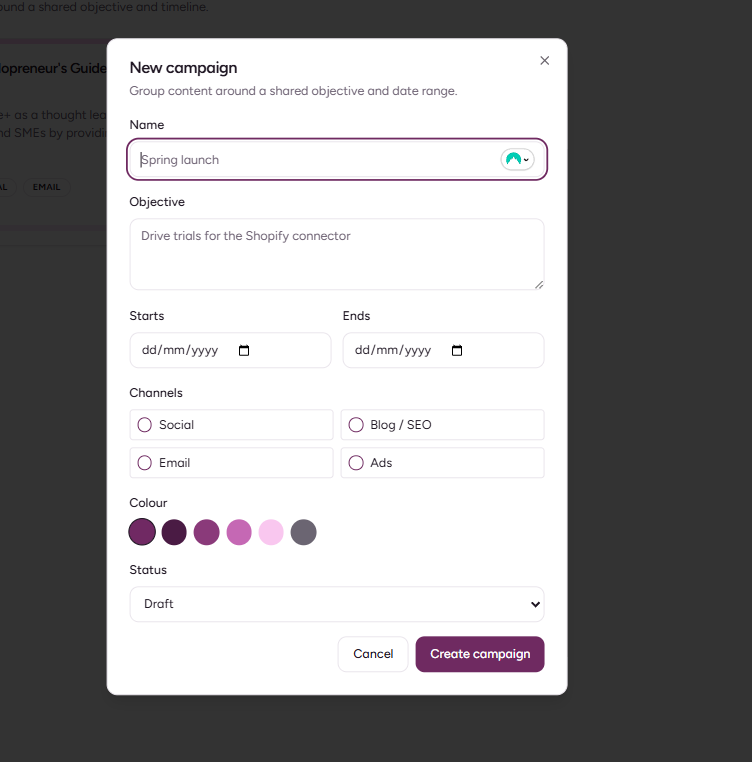
From Content → Campaigns, hit New campaign and set:
-
Name — what the push is, e.g. "Spring Shopify launch"
-
Objective — what you want it to do, e.g. "Drive trials for the Shopify connector"
-
Start and end dates — the window it runs
-
Channels — which of social, blog, email, and ads it covers
-
Color — how it appears on the calendar, from the Purple+ palette
Tagging content to a campaign
Any item can belong to a campaign. Tag content in two ways:
-
From an idea or draft — open it and choose Add to campaign.
-
When you Generate an idea — anything fanned out from an idea in a campaign inherits that campaign automatically.
Tagged items keep their own life — their channel, their status, their schedule. The campaign is just a label they share, so removing or deleting a campaign never deletes the content inside it.
Seeing a campaign on the calendar
When a campaign is active, its items appear on the Planner calendar as usual — each with its channel icon and status badge — with the campaign's color drawn as a band across its date range. Turn on the campaign filter to isolate just that push and see the whole arc in one view.

Tracking progress
Each campaign card shows how far along it is — how many of its items have published against the total tagged to it — plus its objective, date range, channels, and status. It's a quick read on whether a launch is on track without opening every item.
How it works
-
Open Content → Campaigns and hit New campaign.
-
Set the name, objective, dates, channels, and color.
-
Tag content to it — from the item itself, or by generating ideas within the campaign.
-
Watch it come together on the Planner calendar, where it shows as one colored band.
-
Check the campaign card any time to see progress against your objective.
Campaign fields
|
Field |
What it's for |
|---|---|
|
Name |
What the campaign is |
|
Objective |
The goal — also steers content generated within it |
|
Dates |
The window the campaign runs |
|
Channels |
Which channels it covers |
|
Color |
How it appears on the calendar |
|
Status |
Draft, active, completed, or archived |
Which plans include Campaigns?
Everyone can create campaigns and tag content to them. Generating content within a campaign — turning ideas into drafts — is included on Pro and Scale and draws from your monthly credits, the same as any other content you create.